

Build a persistent AI gateway locally, validate every layer, then publish its HTTP listener deliberately
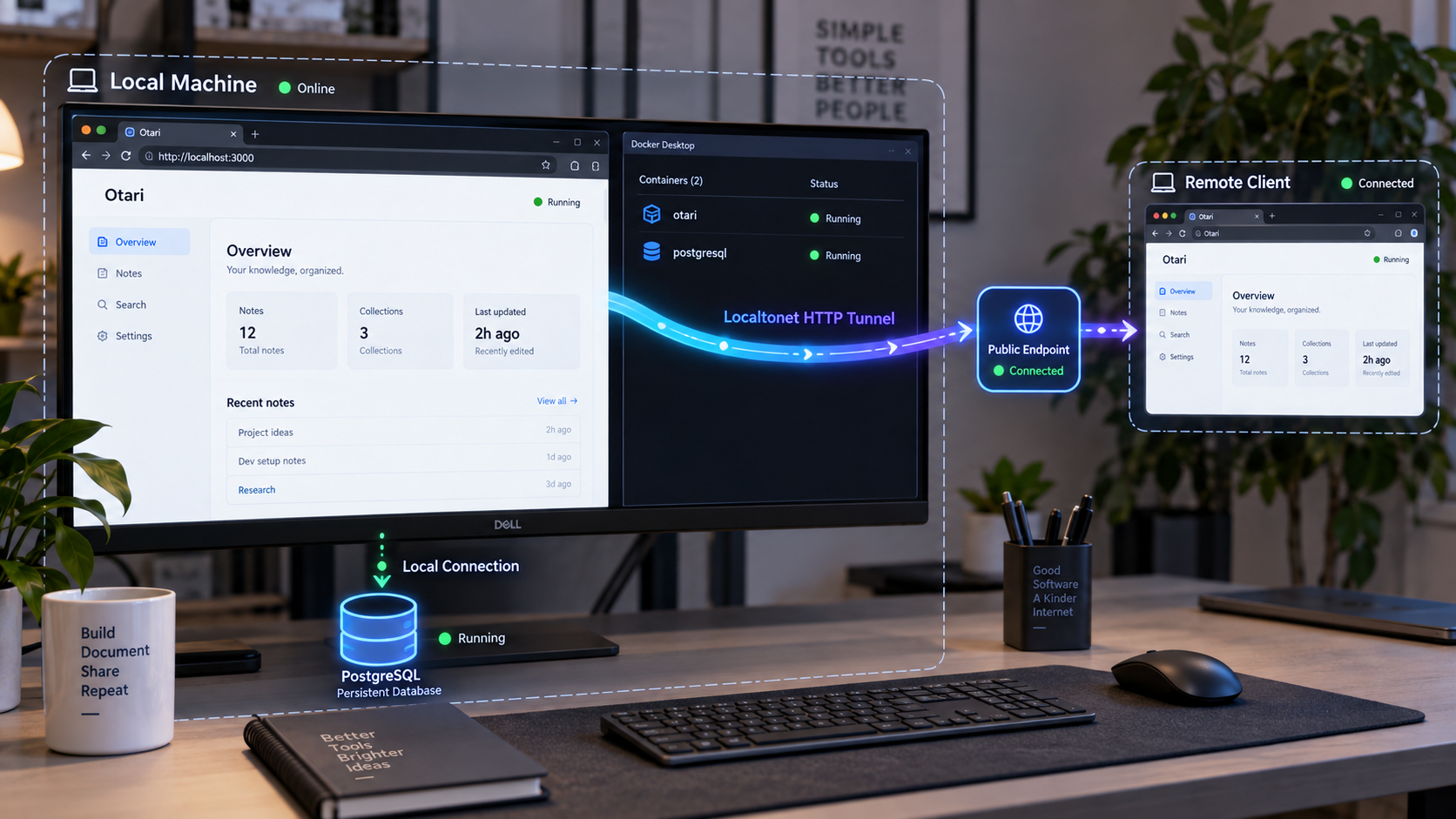
Otari is a self-hosted LLM gateway with OpenAI-compatible and Anthropic-compatible HTTP routes, provider credential management, virtual API keys, budgets, routing, and usage tracking. This guide uses Otari release v0.6.5 as a reproducible reference point and follows the project’s documented Docker Compose workflow with PostgreSQL. It explains the verified installation path, identifies configuration details that must be read from the checked-out release, covers backup and upgrade precautions, and verifies the service locally before adding a Localtonet HTTP tunnel. Remote publication is treated as a separate security decision because forwarding Otari’s port 8000 makes every route served on that listener reachable through the public hostname.
📋 What's in this guide
Release scope and reproducibility limits
This revision is scoped to the tagged Otari release v0.6.5, associated with commit 8911cce. The release was published on September 21, 2026. Using a named tag is safer than treating the repository’s moving main branch as a fixed installation target.
The Otari README for the current project documents the full-stack sequence used in this guide: clone the repository, copy config.example.yml to config.yml, set a master key, provider credentials, and pricing, run docker compose pull, and start with docker compose up -d. It also confirms that the Compose deployment runs Otari with PostgreSQL and that the dashboard is served on port 8000.
The project listing confirms that docker-compose.yml and config.example.yml exist, but their complete contents were not included in the reviewed evidence. This article therefore does not invent service names, database names, volume names, environment mappings, YAML keys, health checks, or image tags. Before operating or backing up the deployment, inspect those two files from the checked-out v0.6.5 tag. Where a command depends on values from those files, this guide uses explicit placeholders and explains how to resolve them.
This distinction matters for reproducibility. A Git tag fixes the repository files you checked out, but docker compose pull can still retrieve different image content later if the Compose file refers to a mutable image tag such as latest. Review the resolved Compose configuration and image references before the first deployment and before every upgrade. If your organization requires byte-for-byte repeatability, use an image pinning policy approved for your environment rather than assuming a mutable tag is permanent.
Confirm the checked-out source revision with:
git describe --tags --exact-match
git rev-parse --short HEAD
For the scope of this guide, the first command should report v0.6.5. The second should correspond to the release commit. If you intentionally deploy another release, use that release’s README, Compose file, example configuration, migration guidance, and release notes instead of assuming every instruction below remains unchanged.
What the Otari PostgreSQL stack provides
Otari sits between applications and upstream model providers. Applications send requests to one gateway rather than integrating separately with every provider. According to the project README, Otari authenticates requests, resolves provider credentials, enforces budgets before dispatch, sends provider calls through its provider integration layer, and records usage afterward.
The documented completion routes include /api/v1/chat/completions, /api/v1/messages, and /api/v1/responses. OpenAI-compatible clients can use http://localhost:8000/api/v1 as their local base URL. The same server publishes the dashboard at http://localhost:8000/, Swagger UI at /api/v1/docs, and the OpenAPI document at /api/v1/openapi.json.
Otari also documents a one-container quickstart that uses SQLite inside the container. That database is deleted when the disposable container stops and is removed. The project directs users who need persistent data to its Compose deployment with PostgreSQL. The README establishes the use of PostgreSQL, but the exact v0.6.5 storage mapping must be confirmed in the checked-out Compose file before making assumptions about named volumes, bind mounts, or external storage.
Runtime modes
Otari documents three runtime modes. This tutorial targets standalone mode because the goal is to run management and inference with local storage. A mode describes what the process serves, not who owns or hosts the machine.
| Mode | Purpose | Operational meaning |
|---|---|---|
| Standalone | Self-contained management and inference | One process serves management and inference while using local storage. This is the intended mode for this tutorial. |
| Hosted | Multi-tenant control plane | The control plane manages the environment while inference runs on connected gateways. |
| Hybrid | Connected data-plane gateway | The gateway resolves credentials locally and reports usage to otari.ai. |
When OTARI_MODE is unset, the presence of OTARI_AI_TOKEN selects hybrid mode. Otherwise, Otari defaults to standalone mode. Check the resolved container environment if a deployment unexpectedly behaves as a hybrid gateway.
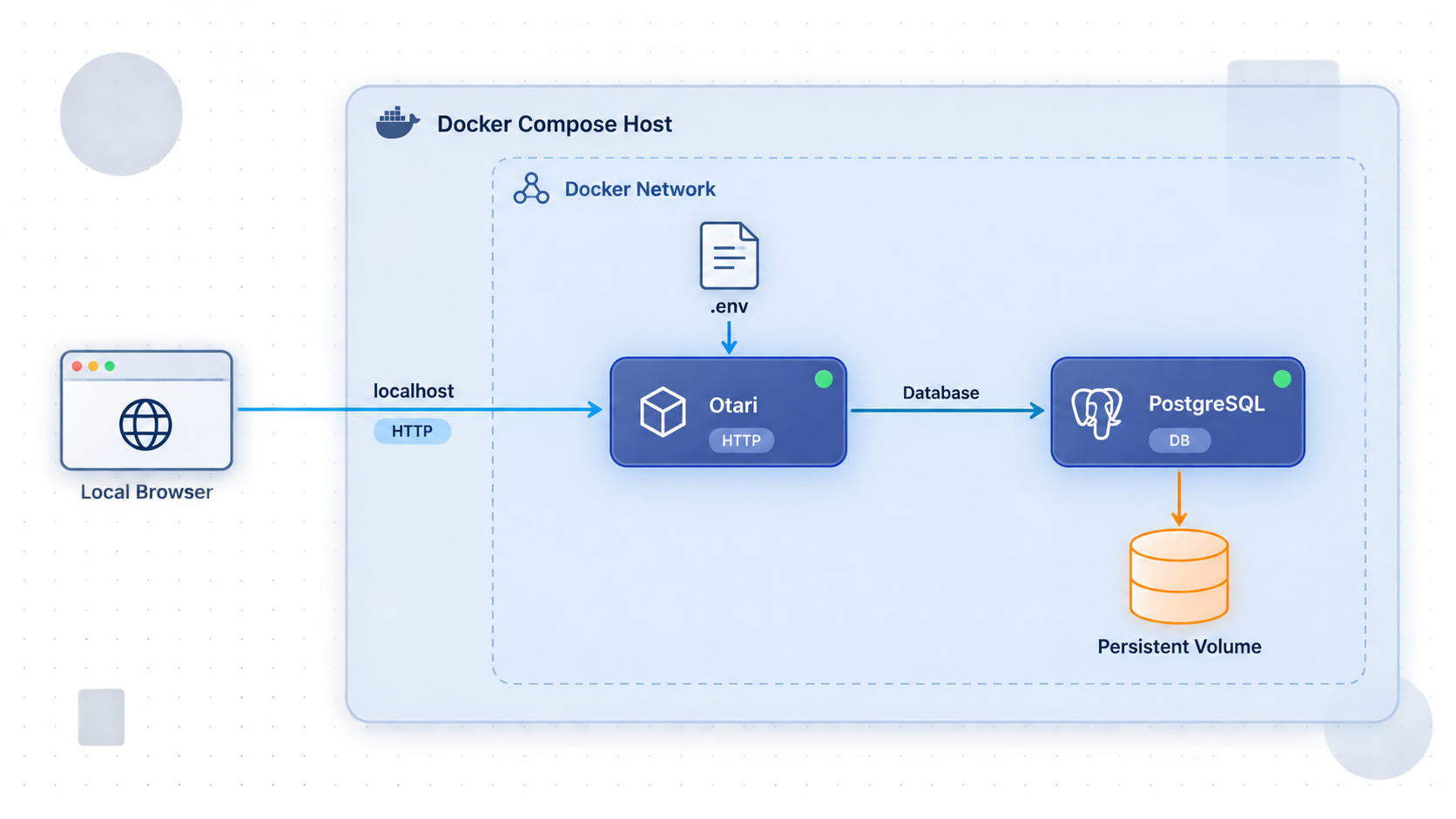
Docker Compose and PostgreSQL establish the local application stack. Localtonet does not replace PostgreSQL, Otari configuration, application authentication, or database backups. Add a tunnel only after the dashboard and authenticated API work locally.
Prerequisites and deployment planning
The host needs Git and a working Docker installation with the modern Compose command available as docker compose. The available project evidence does not state a universal CPU, memory, disk, Docker version, or operating-system minimum, so capacity must be planned for your workload and any optional services.
Confirm the required tools:
git --version
docker --version
docker compose version
Each command should return version information. If Docker cannot contact its daemon, correct that host problem before continuing.
You also need at least one provider credential to submit a real model request. Treat provider credentials, Otari keys, database credentials, and Localtonet device tokens as secrets. Do not place them in Git commits, screenshots, issue reports, public terminal recordings, or command examples.
Check the local network boundary
The documented dashboard address is http://localhost:8000/. Check whether another process already uses port 8000. The reviewed evidence does not define a supported alternative port procedure for the v0.6.5 Compose stack, so inspect its port mapping before changing anything.
The Localtonet client can run on the Otari host or another device that can reach it. If it runs on the same host, the target can use the loopback address. If it runs elsewhere, localhost refers to the Localtonet client’s own machine, not the Otari server. In that arrangement, use an address that the client device can actually reach and protect the local network path.
Inspect the checked-out deployment files
Before editing configuration or pulling images, review the release files locally:
git show v0.6.5:config.example.yml
git show v0.6.5:docker-compose.yml
docker compose config
The first two commands display the files from the tagged source. The final command renders the Compose configuration from your working directory after variable interpolation. Its output can contain resolved operational details, so inspect it privately and do not publish it without removing secrets.
Use this review to identify:
- The Otari application service name.
- The PostgreSQL service name.
- The database name and database user supplied to PostgreSQL.
- The host-to-container port mapping for port 8000.
- The image references and whether any tag is mutable.
- The database storage mount or volume declared by the release.
- How
config.ymlis mounted or otherwise supplied to Otari. - How environment variables such as
OTARI_SECRET_KEYreach the application container.
Do not infer these values from a diagram or an older tutorial. The checked-out files are authoritative for the release you are running.
Install Otari v0.6.5 with Docker Compose
The following sequence adds one reproducibility step to Otari’s documented full-stack workflow: checking out the named release before creating the working configuration.
Clone the official repository
Retrieve the Otari repository from its official GitHub location.
git clone https://github.com/mozilla-ai/otariEnter the repository
Run subsequent Git and Compose commands from the project root.
cd otariCheck out release v0.6.5
Use the named tag instead of deploying the moving main branch.
git checkout v0.6.5
git describe --tags --exact-match
git rev-parse --short HEADCreate the working configuration
Copy the release’s example configuration to config.yml. Keep the example unchanged so it remains available for comparison.
cp config.example.yml config.ymlConfigure the documented required values
Edit config.yml using the keys and comments present in the v0.6.5 example. The README explicitly requires a master key, provider credentials, and pricing. Do not copy a YAML structure from another release.
Review the resolved Compose deployment
Render the Compose configuration and inspect image references, service names, environment variables, mounts, and port mappings before pulling anything.
docker compose configPull the referenced images
Download the images selected by the release’s Compose definition. Record the deployed image identifiers according to your operational policy if rollback or repeatability matters.
docker compose pullStart Otari and PostgreSQL
Start the full stack in detached mode.
docker compose up -dInspect service state and startup output immediately:
docker compose ps
docker compose logs
A required service should not repeatedly restart or exit. Look for malformed configuration, missing required values, database connection failures, migrations, port conflicts, and permission errors. Review initial logs in a private terminal because Otari prints its first bootstrap API key once when it starts with an empty database.
Optional profiles
The README documents optional Compose profiles for code execution, web search, and guardrails:
docker compose --profile code-exec --profile web-search --profile guardrails up -dEnable only the profiles your deployment needs. They add services and expand the operational and security surface. In particular, code execution should be reviewed for isolation, permissions, and exposure before use.
Configure keys, providers, pricing, and clients
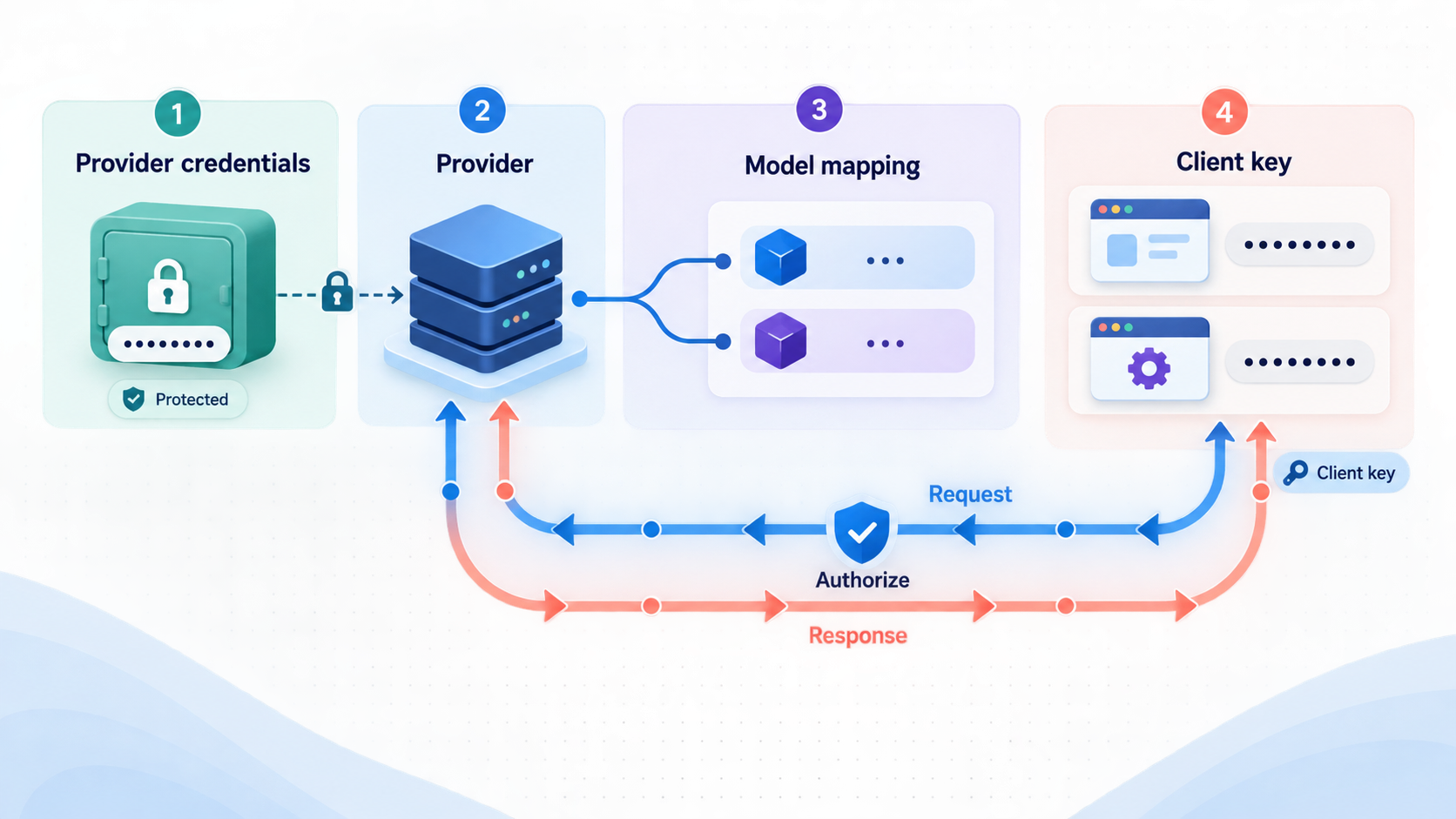
The README establishes three configuration requirements for the full stack: a master key, provider credentials, and pricing. The exact v0.6.5 YAML field names and nesting were not present in the supplied evidence. For that reason, this article cannot safely provide a fabricated complete config.yml.
Complete the file by following the comments and structure in the checked-out config.example.yml. Before startup, verify that:
- The sample master key has been replaced with a strong, unique value.
- At least one provider credential is configured for the provider you intend to test.
- Pricing is configured using the release’s documented format, including any supported default-pricing option shown by that file.
- No sample secrets remain.
- The file is excluded from version control or otherwise protected by your repository policy.
- The model identifier used for verification is supported by the configured provider path.
A deployment cannot be reproduced safely from this article alone without reading the v0.6.5 config.example.yml, because the reviewed evidence did not include its actual schema. This is an explicit evidence limitation, not an invitation to guess field names. Treat the checked-out example as the schema for this release.
Generate OTARI_SECRET_KEY through a supported CLI installation
Otari requires OTARI_SECRET_KEY when provider keys are stored through the dashboard. The value must be a Fernet key generated by:
otari gen-secret-key
The Compose instructions do not establish that the otari executable is available directly on the Docker host or that the server image should be invoked as an ad hoc CLI container. Do not assume either behavior.
The README provides a supported standalone CLI installation path for systems with Homebrew:
brew install mozilla-ai/tap/otari
otari gen-secret-key
Store the generated value in an approved secret manager, then inject it into the Otari application service using the environment mechanism declared by the v0.6.5 Compose file. Confirm the mapping with docker compose config, but do not publish the rendered output because it may expose secret values.
The reviewed evidence does not provide a second packaged CLI installation procedure for hosts without Homebrew, and it does not confirm a release-specific docker compose run command for secret generation. On such hosts, generate the key on a trusted machine where the officially packaged CLI can be installed, then transfer it through your approved secret-management process. Do not invent a container command or use an arbitrary online Fernet generator.
Understand the credential boundaries
| Credential | Consumer | Verified purpose |
|---|---|---|
| Provider credential | Otari | Allows the gateway to call the configured upstream provider. It should not be distributed to ordinary API clients. |
| Otari API key | Client application | Authenticates requests to Otari. The first key is printed once when an empty database is initialized. |
| Otari master key | Otari configuration | A required value in the documented quickstart and full-stack configuration. Keep it private and distinct from client keys. |
OTARI_SECRET_KEY |
Otari service | A generated Fernet key required when provider keys are stored through the dashboard. |
| Localtonet device token | Localtonet client | Identifies the device that runs the tunnel. It is not an Otari API credential. |
Capture the bootstrap key
On the first start with an empty database, Otari creates an API key and prints it once. Review the initial Compose logs privately, store the key in an approved secret manager, and do not expect the plaintext value to be printed on every restart.
If the database has already been initialized, the absence of a new bootstrap message is expected. Do not delete PostgreSQL data merely to force another key to appear. Use Otari’s supported key-management workflow.
Configure clients
An OpenAI-compatible client on the Otari host can use:
http://localhost:8000/api/v1
Supply an Otari API key as the bearer credential. Do not give the client the upstream provider key. After publication, remote clients use the Localtonet public HTTPS hostname followed by /api/v1.
Verify the dashboard, schema, and model route locally
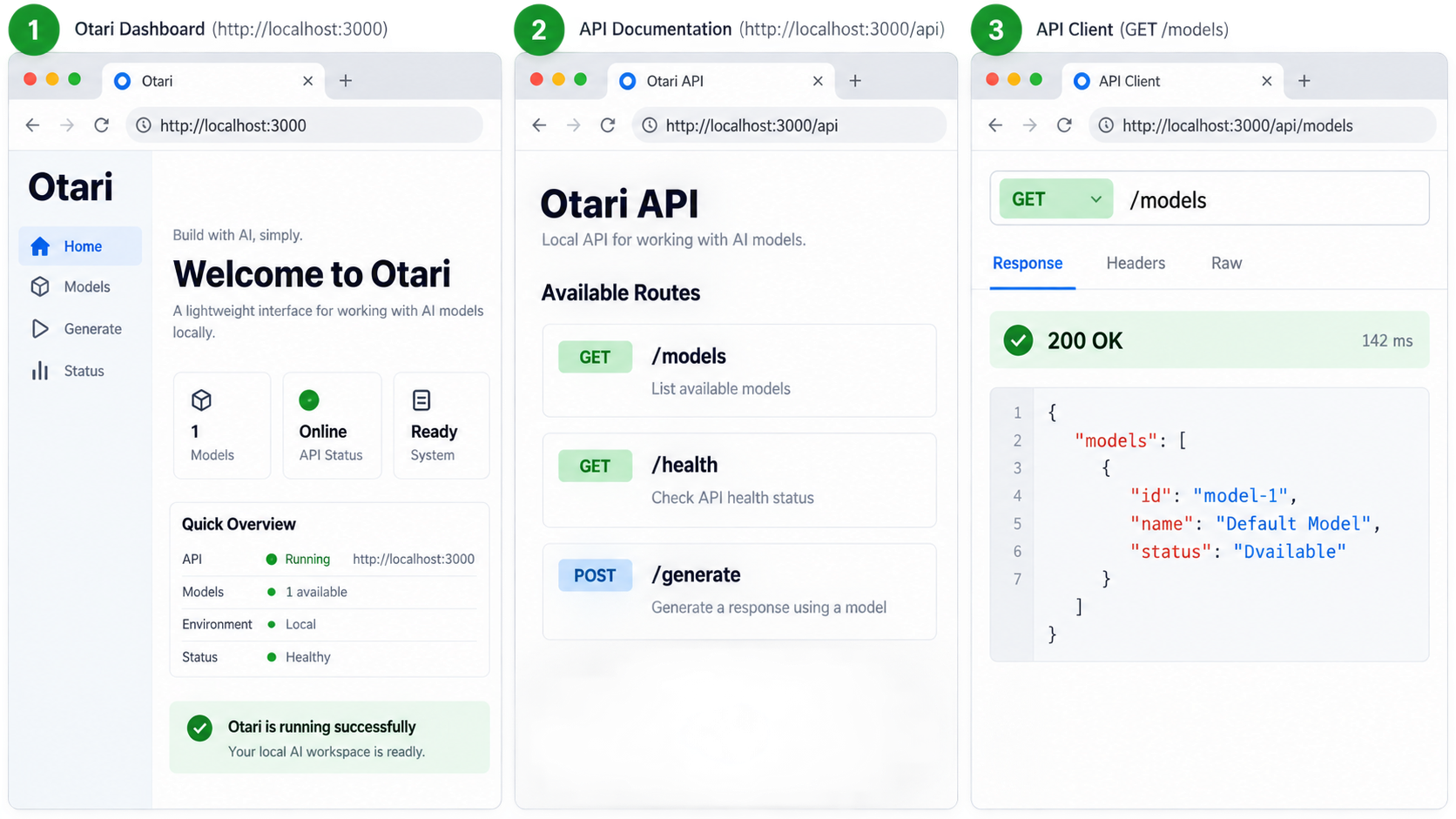
1. Check container state
docker compose ps
docker compose logs
Confirm that the required services remain running. Resolve database, configuration, migration, and port-binding errors before testing HTTP.
2. Open the dashboard
http://localhost:8000/The dashboard should load on the Otari host. Navigation can vary with runtime mode and the signed-in person’s authority.
3. Retrieve the API schema
Swagger UI is served at:
http://localhost:8000/api/v1/docsThe OpenAPI document is served at:
http://localhost:8000/api/v1/openapi.jsonTest it from the command line:
curl http://localhost:8000/api/v1/openapi.jsonA returned document confirms that the HTTP listener and route registration work. It does not prove that provider credentials, budgets, model routing, or upstream access are correct.
4. Send an authenticated model request
Replace the placeholder with an Otari API key. The project README uses openai:gpt-4o-mini in its example, so this request requires a compatible OpenAI provider configuration and permission to use that model.
curl http://localhost:8000/api/v1/chat/completions \
  -H "Authorization: Bearer YOUR_OTARI_API_KEY" \
  -H "Content-Type: application/json" \
  -d '{
    "model": "openai:gpt-4o-mini",
    "messages": [
      {
        "role": "user",
        "content": "Say hello."
      }
    ]
  }'
A successful response verifies the listener, request authentication, model resolution, applicable budget checks, provider credentials, upstream connectivity, and response path. An authentication failure points to the Otari key. A model or provider error points to configuration, permission, quota, or upstream behavior. A connection refusal points to the local service rather than Localtonet.
A public tunnel cannot repair a stopped container, malformed configuration, failed PostgreSQL connection, invalid Otari key, unavailable model, or rejected provider credential. Keep the tunnel stopped until local verification succeeds.
Back up, restore, restart, and upgrade the deployment
Routine status and restart commands
docker compose ps
docker compose logs
docker compose stop
docker compose start
Stopping the Compose services makes Otari unavailable. A Localtonet tunnel may remain configured, but remote requests cannot succeed while the target service is stopped. After a restart, repeat the dashboard, OpenAPI, and authenticated model checks rather than relying only on container status.
To reconcile the running services with the current Compose definition:
docker compose up -dWhether a configuration change requires container recreation depends on how that release mounts files and supplies environment values. Verify the effective behavior through logs and HTTP checks.
Resolve PostgreSQL values before backup
The reviewed evidence does not expose the v0.6.5 PostgreSQL service name, database name, user, or storage declaration. Resolve those values from the tagged Compose file:
docker compose config --services
docker compose config
In the commands below, replace:
POSTGRES_SERVICEwith the PostgreSQL service name.POSTGRES_USERwith the configured database user.POSTGRES_DBwith the configured database name.OTARI_SERVICEwith the Otari application service name.
The pg_dump and pg_restore workflow below is the standard PostgreSQL logical backup pattern for a database running in a Compose service. Because the exact v0.6.5 Compose values were absent from the supplied evidence, the commands cannot honestly be presented as tested with hardcoded Otari service names. Resolve the placeholders from your checked-out release and test restoration in a non-production environment before relying on the backup.
Create a PostgreSQL logical backup
For a cleaner application-consistent maintenance window, stop the Localtonet tunnel first so new remote requests cannot arrive. Then pause the Otari application service while leaving PostgreSQL running:
docker compose stop OTARI_SERVICECreate a custom-format PostgreSQL dump:
docker compose exec -T POSTGRES_SERVICE \
  pg_dump -U POSTGRES_USER -d POSTGRES_DB -Fc \
  > otari-postgres.dump
Confirm that the output file exists and is not empty, then protect it as sensitive data. A database backup can contain gateway configuration, key metadata, provider-related records, usage data, and other private application state.
Start Otari again and repeat local checks:
docker compose start OTARI_SERVICE
docker compose ps
curl http://localhost:8000/api/v1/openapi.json
Restore into a controlled database
A restore is destructive when it replaces an existing database. Stop the Localtonet tunnel, stop the Otari application service, and confirm that you are targeting the intended PostgreSQL instance. The destination should be compatible with the application release and database schema represented by the backup.
docker compose stop OTARI_SERVICE

cat otari-postgres.dump | docker compose exec -T POSTGRES_SERVICE \
  pg_restore -U POSTGRES_USER -d POSTGRES_DB --clean --if-exists
Restore behavior depends on database ownership, privileges, extensions, existing connections, and how the database was initialized. If the destination must first be created or recreated, use a procedure appropriate to the exact PostgreSQL configuration rather than guessing from this article.
Start the application and validate the restored state:
docker compose start OTARI_SERVICE
docker compose ps
docker compose logs
curl http://localhost:8000/api/v1/openapi.json
Then verify dashboard access, existing gateway keys, provider configuration, model routing, budgets, and a representative authenticated request. A successful pg_restore exit alone does not prove application-level recovery.
Upgrade deliberately
Before an Otari upgrade:
- Stop the Localtonet tunnel.
- Create and test a PostgreSQL backup.
- Record the currently deployed source tag and image identifiers.
- Review the target release notes.
- Compare the target
config.example.ymlwith your current configuration. - Compare the target Compose file with the current release.
- Review database migration and rollback implications.
After choosing and checking out the intended release, pull and recreate the stack:
docker compose pull
docker compose up -d
docker compose ps
docker compose logs
Validate the dashboard, OpenAPI document, authentication, configured models, budgets, and at least one representative completion request locally. Restart the public tunnel only after those checks succeed.
Use docker compose down carefully:
docker compose downThis removes Compose containers and the project network. Storage behavior depends on the actual Compose declaration. Do not add volume-removal options during routine troubleshooting unless permanent deletion is intentional and a tested backup exists.
Publish Otari with a Localtonet HTTP tunnel
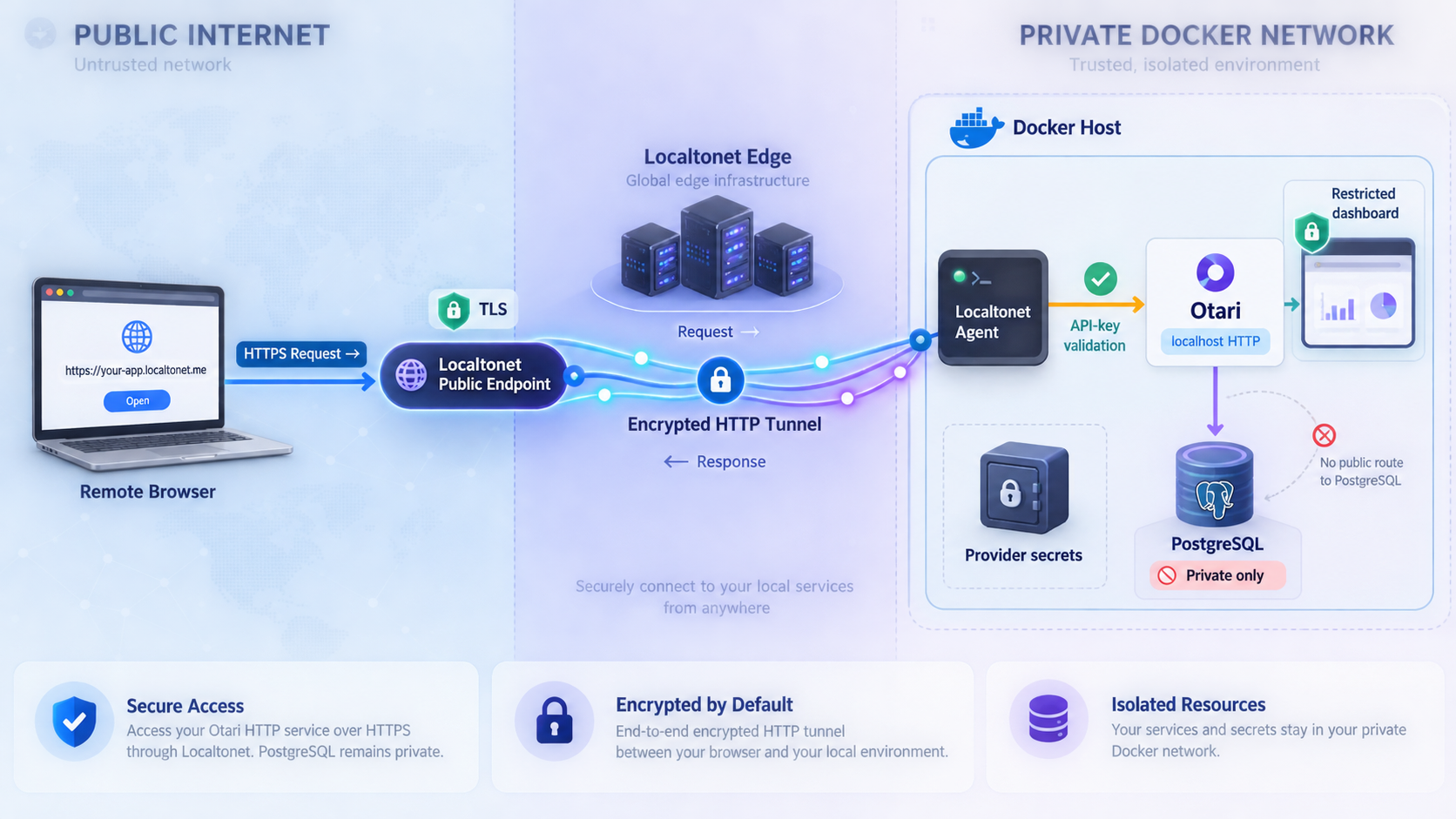
Once http://localhost:8000/ works, Localtonet can provide a public HTTPS address for that listener. Our client establishes an outbound connection to a Localtonet relay, so inbound router port forwarding, a public IP address, firewall changes, and VPN setup are not required for this tunnel workflow.
Creating the configuration does not start it automatically. The selected client device must be connected and the tunnel must be started. Follow the current Localtonet HTTP tunnel documentation alongside the sequence below.
Install and run the Localtonet client
Install our client on the Otari host or another trusted device that can reach the Otari listener. Confirm that the client can establish its outbound connection.
Create an HTTP tunnel and select Process Type
Open the HTTP tunnel workflow and choose the required Process Type: Random Sub Domain, Custom Sub Domain, or Custom Domain. Each type serves the target through a public HTTPS address. Use only options currently available to your account, and review current DNS instructions before configuring a custom domain.
Select the AuthToken or connected device
Select the device-specific AuthToken for the Localtonet client that will run the tunnel. Never place this token in Otari configuration, API requests, source control, screenshots, or public logs.
Select a current relay server
Choose an available relay server or region from the current dashboard. Do not copy a hardcoded server code from an older tutorial because availability can vary.
Enter the Otari target address and port
Set the local IP address to the address from which the selected Localtonet client can reach Otari, and set the local port to 8000. When both processes run on the same host, use the host’s loopback address. When they run on different devices, use a reachable private address and verify that connection before continuing.
Start the tunnel
Review the Process Type, device, relay, target address, and target port, then press Start. A saved tunnel is not active until it is started.
Verify the assigned public HTTPS address
Test the public hostname from a device outside the Otari host. Verify the intended API route with an Otari API key, and verify dashboard exposure deliberately rather than assuming only the API is reachable.
Verify through the public hostname
curl https://YOUR_PUBLIC_HOST/api/v1/openapi.jsonThen repeat the authenticated completion request:
curl https://YOUR_PUBLIC_HOST/api/v1/chat/completions \
  -H "Authorization: Bearer YOUR_OTARI_API_KEY" \
  -H "Content-Type: application/json" \
  -d '{
    "model": "openai:gpt-4o-mini",
    "messages": [
      {
        "role": "user",
        "content": "Say hello."
      }
    ]
  }'
If the local request succeeds but the public request fails, check the Localtonet client connection, selected device, relay, tunnel state, target address, port, and public hostname. If both requests fail in the same way, investigate Otari or the provider path first.
Pointing an HTTP tunnel at port 8000 makes every route served by that listener reachable through the public hostname, subject to Otari’s own authentication and authorization. This includes the root dashboard, /api/v1/docs, /api/v1/openapi.json, completion routes, and any other route registered on the same listener. A basic HTTP tunnel does not separate paths or publish only /api/v1/chat/completions.
The tunnel target for this workflow is Otari’s HTTP service on port 8000. Applications should call the gateway API. PostgreSQL should remain private to the deployment.
Secure a remotely reachable Otari listener
A public hostname changes the service’s threat model. Localtonet provides reachability to the configured local HTTP target, but Otari remains responsible for application authentication, authorization, model scope, budgets, provider credentials, and administrative access.
Treat dashboard and API publication as one decision
Port 8000 serves the dashboard and API documentation as well as the model routes. A basic Localtonet HTTP tunnel forwards requests to that listener without path-level separation. You cannot assume that publishing /api/v1 leaves / or /api/v1/docs private.
Before sharing the hostname, test every relevant route from an unauthenticated external browser and from an authenticated client. Confirm what Otari itself permits at the root dashboard, Swagger UI, OpenAPI route, management routes, and inference routes.
If the dashboard must remain private while selected API routes are public, that requirement needs either a verified Otari control that enforces the desired route policy or a separately documented reverse-proxy architecture that performs authentication and path filtering before traffic reaches Otari. The supplied evidence does not establish such an Otari setting or reverse-proxy deployment, so this guide does not invent one.
Use scoped Otari keys
Give each application an appropriate revocable gateway key. Avoid sharing a bootstrap key across unrelated clients. Apply available user, workspace, model, and budget scope according to the workload. Revoke credentials that are no longer needed and rotate any key that may have been exposed.
Keep provider credentials server-side
Applications should receive Otari keys, not provider credentials. Protect provider credentials, the master key, OTARI_SECRET_KEY, PostgreSQL credentials, database backups, and Localtonet tokens independently. A compromise of any one of these values has a different operational impact.
Control the tunnel lifecycle
Stop the tunnel during upgrades, restores, incident response, or configuration changes that might expose an unsafe state. The local service can remain available for diagnosis while its public path is stopped. Delete obsolete tunnel configurations that should not be reused.
The public HTTPS address protects transport to the tunnel edge, but it does not correct weak Otari keys, excessive model permissions, missing budgets, leaked provider credentials, exposed administrative routes, or unsafe optional services. Validate application controls from an external client before distributing the URL.
Troubleshooting Otari, PostgreSQL, and Localtonet
The Compose stack does not start
Run docker compose ps and docker compose logs from the tagged repository directory. Check for malformed config.yml, missing required values, a port conflict on 8000, PostgreSQL startup failures, database connection errors, image pull failures, migrations, or host storage permissions. If Docker cannot contact its daemon, resolve that before changing Otari.
The deployment does not match v0.6.5
Run git describe --tags --exact-match and git rev-parse --short HEAD. Confirm that local edits have not changed the Compose or example configuration files. Remember that a fixed Git tag does not necessarily pin mutable container images.
The dashboard does not open locally
Test http://localhost:8000/ on the Otari host. If you open that address on another machine, localhost refers to that other machine. Confirm the port mapping in docker compose config and verify that the Otari service remains running.
The OpenAPI route works, but completion requests fail
The listener is working, but a later stage is failing. Check the bearer key, requested model, provider configuration, provider credential, account permission, quota, budget policy, and upstream availability. Compare the response with sanitized Otari logs.
No bootstrap key appears
Otari prints a bootstrap key once when it starts with an empty database. An initialized PostgreSQL database is not empty. Review the earliest private startup logs and use supported key management. Do not erase the database to force bootstrap behavior.
The Otari CLI is not available for secret generation
The server Compose workflow does not prove that otari is installed on the host. On a supported Homebrew system, install the documented package with brew install mozilla-ai/tap/otari, then run otari gen-secret-key. The reviewed evidence does not establish a release-specific Compose command for running this CLI, so do not guess one.
Provider keys cannot be stored through the dashboard
Confirm that OTARI_SECRET_KEY contains the generated Fernet key and reaches the Otari application service through the actual v0.6.5 Compose environment. Recreate or restart the service as required, then inspect sanitized logs. Keep the key stable and private.
The PostgreSQL backup command fails
Recheck the service name, database user, and database name against docker compose config. Confirm that pg_dump exists in the PostgreSQL container and that the configured user can read the database. Do not substitute guessed values from another Otari release.
The restored service starts but behaves incorrectly
Check application and database logs for schema or migration errors. Confirm that the backup matches the intended Otari release and that all required configuration secrets are still present. Validate keys, providers, models, budgets, dashboard state, OpenAPI output, and a real authenticated request before reopening the tunnel.
The Localtonet URL does not respond
Confirm that the selected Localtonet client is connected and the tunnel is started. Recheck Process Type, device, relay, target address, and port 8000. From the Localtonet client device, verify that the same target address is reachable directly. A loopback target works only when Otari and the Localtonet client run on the same host.
The public dashboard works, but API requests are unauthorized
Reachability and Otari authentication are separate. Send Authorization: Bearer YOUR_OTARI_API_KEY and confirm that the key can use the requested model and workspace. Never use the Localtonet device token as an Otari API key.
The public endpoint stops after a reboot
Check both lifecycles. The Otari and PostgreSQL services must be running, the Localtonet client must be connected, and the tunnel must be started. Configure automatic startup only through mechanisms supported by the host, the Compose deployment, and the installed Localtonet client version.
An update changes configuration or dashboard behavior
Stop public access, restore the previous release if necessary, and review the target release notes. Compare both config.example.yml and docker-compose.yml across releases. Repeat database, dashboard, OpenAPI, authentication, model, budget, and completion checks before restarting the tunnel.
Frequently asked questions
Why use Docker Compose instead of the Otari quickstart?
The one-container quickstart uses SQLite inside a disposable container, and that database is deleted when the container is removed. Otari directs users who need persistent data to the Compose deployment with PostgreSQL.
Why does this guide use Otari v0.6.5?
A named release provides a fixed repository reference, unlike the moving main branch. You must still inspect the Compose image references because a Git tag does not prevent a mutable container image tag from changing.
Which local port does Otari use?
The documented dashboard is served at http://localhost:8000/. The API and documentation routes use the same listener, including /api/v1/chat/completions, /api/v1/messages, /api/v1/responses, /api/v1/docs, and /api/v1/openapi.json.
Can Localtonet expose only the completion route?
Not with a basic HTTP tunnel pointed directly at Otari’s port 8000. The public hostname can reach every route served on that listener. Path separation requires a verified Otari control or a separately documented reverse proxy that enforces the desired policy.
Does Localtonet replace Otari authentication?
No. Localtonet provides reachability to the configured HTTP target. Otari remains responsible for API authentication, authorization, model scope, budgets, provider credentials, and administrative access.
When is OTARI_SECRET_KEY required?
Set OTARI_SECRET_KEY to a Fernet key generated by otari gen-secret-key when storing provider keys through the dashboard. The README documents Homebrew as one supported way to install the standalone Otari CLI.
Should PostgreSQL be exposed through Localtonet?
No, not for this workflow. Publish Otari’s HTTP listener on port 8000 and keep PostgreSQL private to the deployment. Applications should communicate with the gateway API.
Can the Localtonet client run on another machine?
Yes, if that device can reach the Otari host and port. In that arrangement, do not use localhost as the tunnel target because it refers to the Localtonet client machine. Use a reachable address and secure the local network path.
Does creating a tunnel make it active immediately?
No. The selected client device must be connected, and the tunnel must be started with the Start button. The endpoint remains available only while the client is connected and the tunnel is running.
Connect your verified Otari gateway with Localtonet
Pin the intended Otari release, inspect its configuration and Compose files, validate PostgreSQL recovery, and test the authenticated API locally. When the complete port 8000 listener is ready for remote access, create and start a Localtonet HTTP tunnel.
Get Started Free →