

Deploy a solar dashboard on your own Linux host, verify its real endpoint, then add controlled remote access
SOLECTRUS is an open-source photovoltaic dashboard for monitoring solar production, household consumption, battery use, grid exchange, costs, and savings. Its maintainers recommend HELIOS as the installation path for operators because HELIOS sets up the Docker containers, centralizes configuration, installs updates, and can create an anonymized support package. This guide separates that production workflow from the repository's contributor environment, explains what the current public project evidence does and does not specify, and shows how to publish a verified SOLECTRUS web endpoint through a Localtonet HTTP tunnel.
📋 What's in this guide
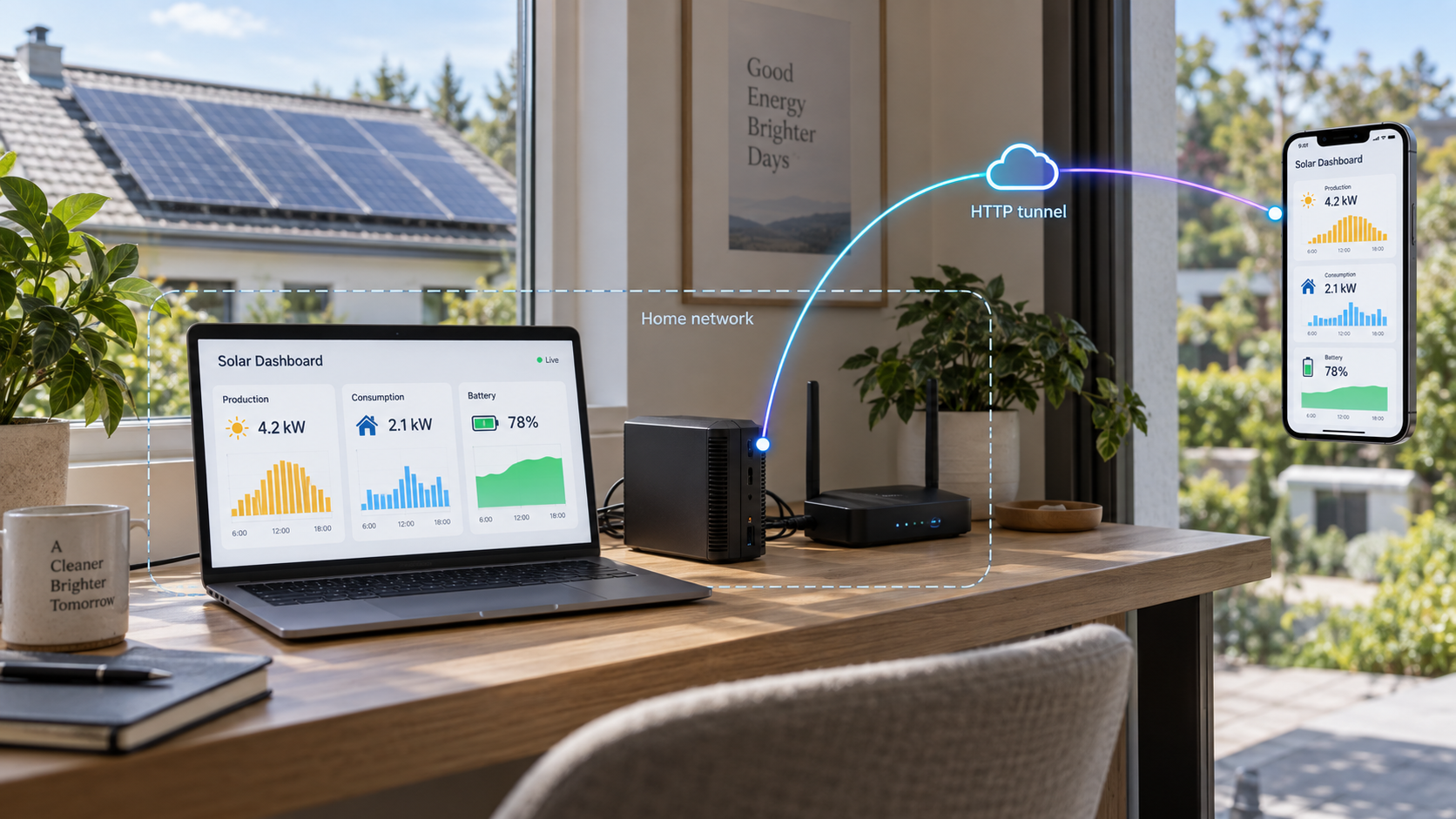
How SOLECTRUS, HELIOS, Docker, and Localtonet fit together
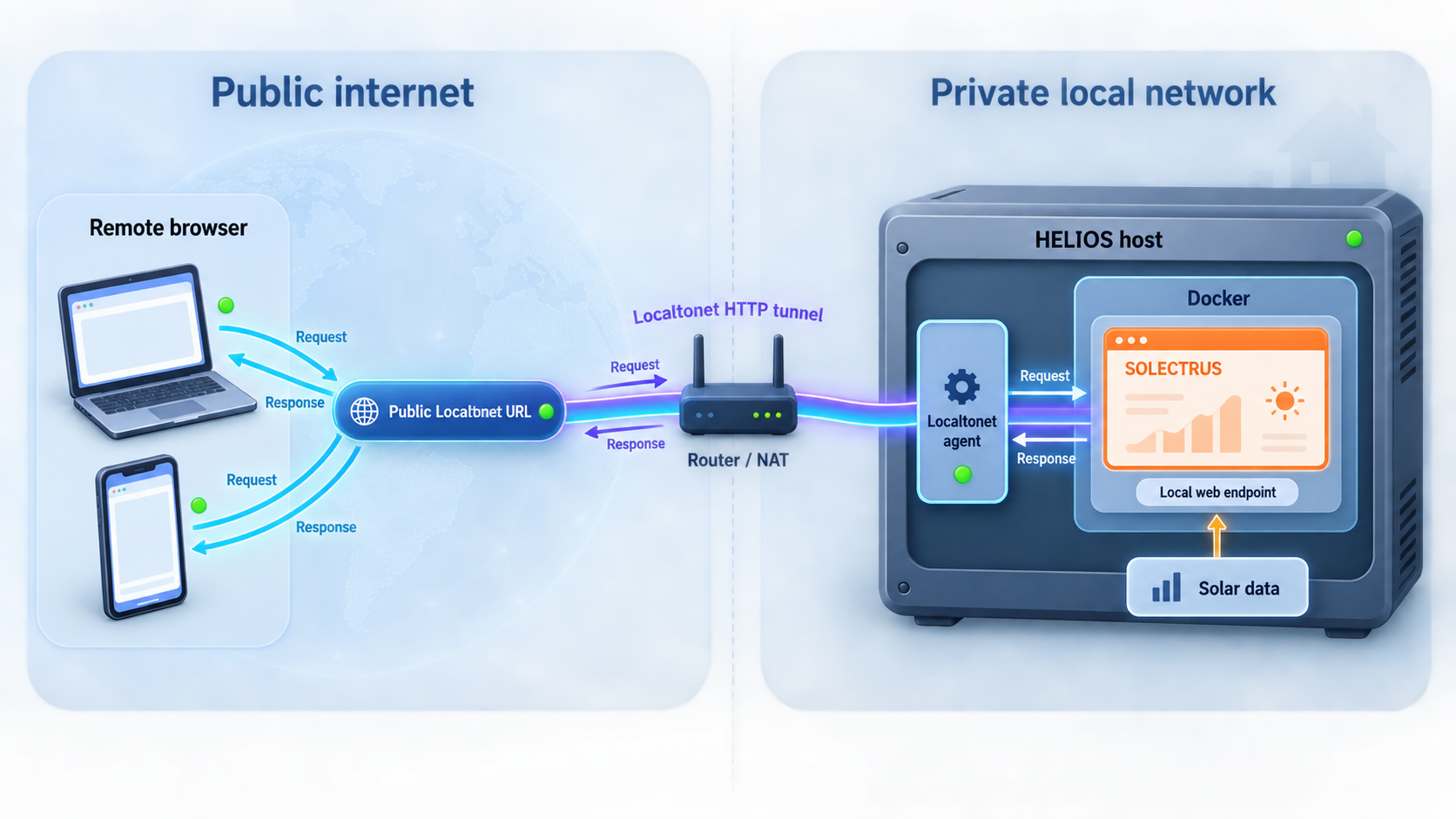
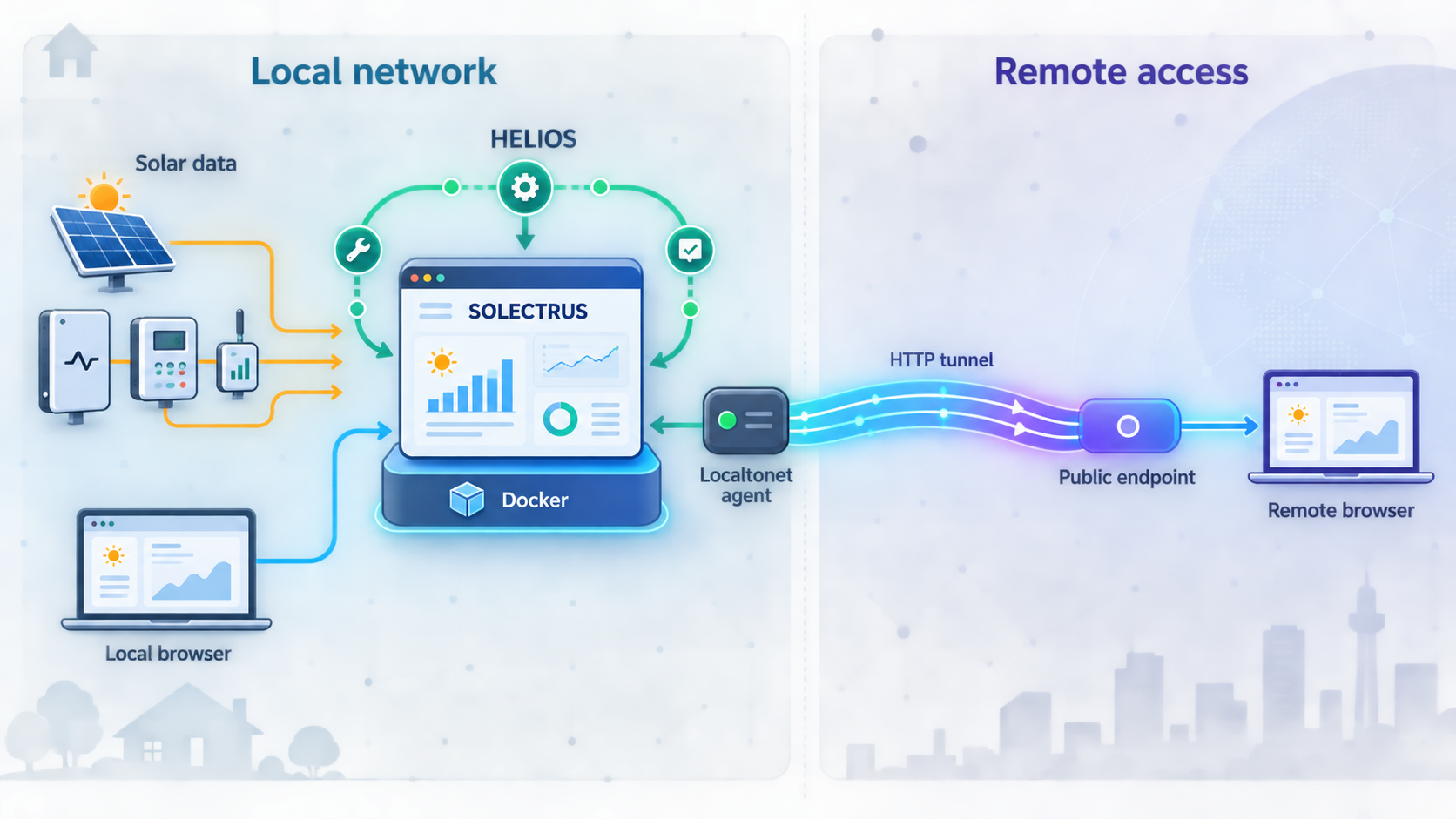
SOLECTRUS is a self-hosted solar dashboard built with Ruby on Rails and InfluxDB. It presents real-time and historical information about photovoltaic production and energy use, including consumption, battery activity, grid exchange, costs, and savings. The operator supplies the server and remains responsible for the host, network, data-source credentials, application access, updates, and recovery planning.
The SOLECTRUS maintainers recommend HELIOS for a normal installation. According to the current project README, HELIOS sets up the necessary Docker containers, keeps installation configuration in one place, installs updates with one click, and creates a support package with anonymized logs and configuration when help is needed. The official project README links to the current HELIOS entry point, and that maintained link should be treated as authoritative if its location changes.
This is different from the development procedure in the SOLECTRUS source repository. The contributor workflow assumes macOS with Homebrew, installs PostgreSQL, Redis, and Caddy, runs bin/setup, and starts the application with bin/dev. That environment opens https://solectrus.localhost and may ask Caddy to install a local certificate authority. Those commands and that hostname are for source-code development, not evidence of how a production HELIOS installation is installed, addressed, or started.
Localtonet does not install or manage SOLECTRUS. Our platform connects an already working local service to the public internet. The Localtonet client runs on a device that can reach the SOLECTRUS endpoint and establishes an outbound connection to a Localtonet relay server. An HTTP tunnel then provides a public HTTPS address without inbound router port forwarding, firewall changes, VPN setup, or a public IP address.
Begin at the official SOLECTRUS repository and follow its HELIOS installation link. The supplied current project evidence does not publish a universal HELIOS shell command, package filename, container name, installation directory, screen-label sequence, or production port. Those details must come from the current HELIOS installer rather than an old tutorial or an invented example.
Supported prerequisites and decisions before installation
The project states that SOLECTRUS is self-hosted and requires a server supplied by the operator. A Raspberry Pi works, and the project also identifies another Linux machine as suitable. The official SOLECTRUS website describes local servers, cloud VPS systems, NAS devices, and Raspberry Pi hardware as possible hosting environments.
These broad hosting examples do not establish that every processor architecture, Linux distribution, NAS operating system, or older Raspberry Pi model is supported by every HELIOS release. The current public evidence supplied for this revision does not define minimum CPU, memory, disk, Docker version, Linux distribution, or architecture requirements. Check the compatibility requirements presented by the current HELIOS installation source before selecting or repurposing hardware.
Host and administrative access
Prepare a Linux host you are authorized to administer. It needs a working network connection and sufficient resources for the current HELIOS-managed installation. If the host is a NAS or vendor appliance, confirm that its operating environment is compatible with the installation path linked by the SOLECTRUS project. Do not assume that the presence of an unrelated container interface makes that platform compatible.
Keep the host's date, time, and time zone correct. SOLECTRUS displays time-based energy measurements, so an incorrect clock can make otherwise valid readings appear in the wrong period. The host also needs to remain available whenever you expect SOLECTRUS to collect and present current data.
Data-source information
Installation of the dashboard and configuration of an energy integration are related but distinct tasks. SOLECTRUS describes integrations including SENEC, Shelly, MQTT, Home Assistant, ioBroker, evcc, and photovoltaic forecasting. That list does not mean that these integrations share the same fields or that every device model and firmware version is supported.
Before configuring a specific integration, gather only the information required by its current instructions. This may include the address of a local system and authorized credentials, but exact requirements differ. The general SOLECTRUS installation procedure cannot safely substitute guessed field names or example credentials for integration-specific documentation.
Local and remote access plan
Keep the initial installation private. You should first identify the exact SOLECTRUS endpoint produced by HELIOS, test it from the host, test it from the future Localtonet client device, and check its sign-in behavior. Public access belongs at the end of the workflow.
Decide where the Localtonet client will run. It may run on the SOLECTRUS host or another device that can reach the dashboard. The selected device must remain connected whenever the public tunnel should be available.
| Prerequisite | Evidence-backed requirement | What must be checked in the current installer |
|---|---|---|
| Host | A Raspberry Pi or another Linux server can host SOLECTRUS | Supported distribution, architecture, release, and resource requirements |
| HELIOS entry point | The SOLECTRUS maintainers recommend HELIOS | The current installation method and any platform-specific actions |
| Container environment | HELIOS sets up the Docker containers | Whether the installer supplies Docker or expects an existing installation |
| Energy integration | SOLECTRUS supports multiple integration families | Fields, credentials, permissions, and compatibility for the chosen integration |
| Dashboard endpoint | A working web endpoint is needed for browser and tunnel access | The actual scheme, host, and port created or displayed by HELIOS |
| Remote-access device | The Localtonet client must be able to reach the local target | Hostname resolution, local routing, and access to the endpoint |
Energy production, household consumption, battery behavior, and financial information can reveal private operational patterns. Verify the application's access controls in a private browser session before creating a public tunnel. A Localtonet tunnel provides connectivity, not a replacement for application authentication or authorization.
Install SOLECTRUS through the supported HELIOS entry point
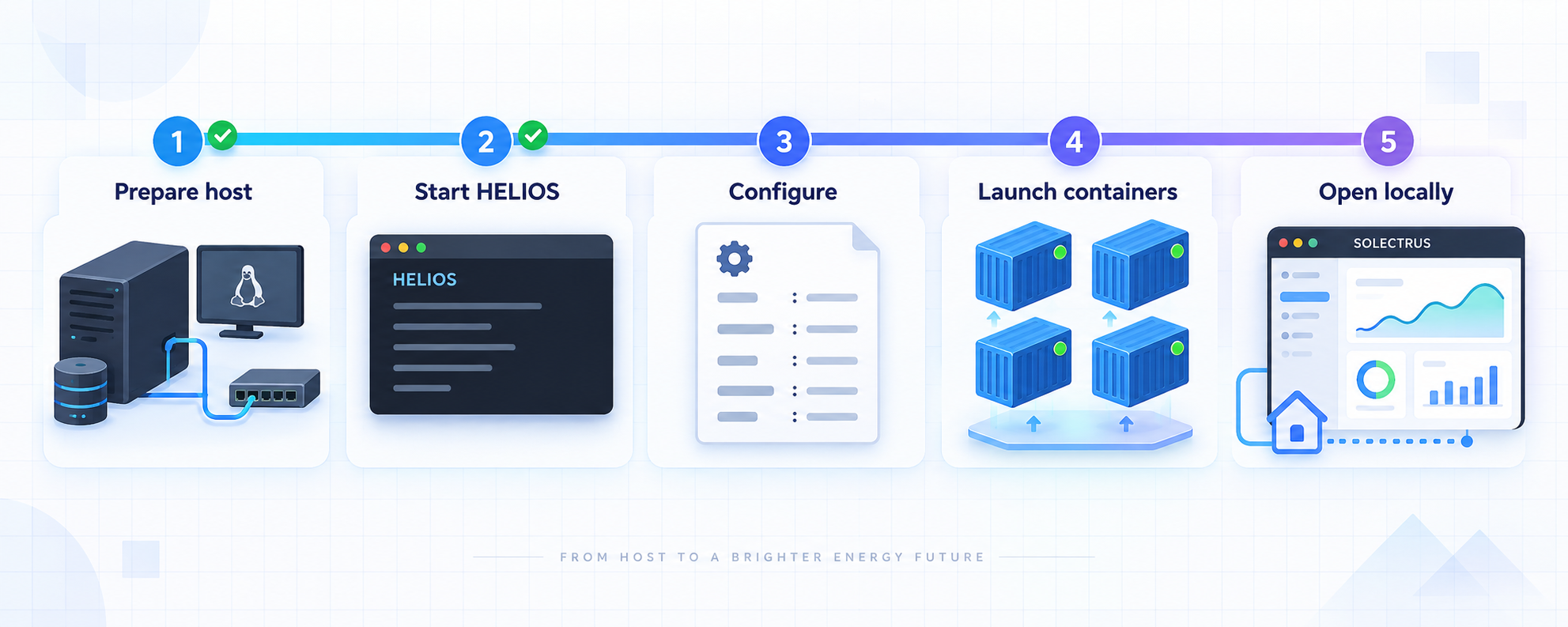
The supported operator entry point is HELIOS, not the repository's contributor commands. Open the official SOLECTRUS project, locate its Installation section, and follow the maintained HELIOS link. This prevents a copied URL or installer command in an article from silently becoming obsolete.
A reproducible tutorial should normally include the exact bootstrap command and every installer field. The current evidence supplied for this article confirms what HELIOS manages but does not expose those platform-specific commands or current interface labels. We therefore preserve the exact boundary instead of fabricating a command, port, path, variable, or button. Use the five ordered checkpoints below together with the live HELIOS installer.
Open HELIOS from the official SOLECTRUS installation section
Start at the official SOLECTRUS repository and use the HELIOS link in its Installation section. Verify that you are following the current project-maintained destination before running any command or downloading any package. Do not substitute the repository's macOS development instructions.
Validate the host against the current HELIOS prerequisites
Compare the Linux host, processor architecture, operating-system release, available resources, and administrative access with the requirements shown by the current HELIOS source. If the installer expects Docker to be present, follow its stated prerequisite. If it provides or manages Docker itself, do not add an unrelated installation procedure.
Complete only the configuration requested by HELIOS
Enter the installation and site values requested by the current HELIOS workflow. Record which values are universal installation settings and which belong to your selected energy integration. Use real installation values, protect credentials, and do not create fields based on examples from another integration.
Start the installation through HELIOS
Use the startup or installation action provided by the current HELIOS interface or instructions. HELIOS is responsible for setting up the Docker containers. Wait for its reported installation or service status instead of guessing container names or launching the SOLECTRUS development stack manually.
Identify and record the production dashboard endpoint
Use the address displayed or documented by the completed HELIOS installation. Record the complete scheme, hostname or IP address, and port. The supplied project evidence does not establish a universal production endpoint, so do not reuse https://solectrus.localhost or guess a port.
The repository documents git clone, brew bundle, brew services start postgresql@18, bin/setup, and bin/dev for contributors on macOS with Homebrew. That workflow starts a development environment at https://solectrus.localhost. It must not be used to infer HELIOS prerequisites, storage paths, container ownership, startup behavior, or the production web address.
What HELIOS is confirmed to manage
The current SOLECTRUS README confirms four HELIOS responsibilities: setting up the Docker containers, keeping configuration in one place, installing updates with one click, and creating an anonymized support package containing logs and configuration. It does not, in the evidence supplied here, define whether Docker is installed by HELIOS or must already exist, where generated files are stored, how volumes are laid out, or which service names are used.
For the same reason, avoid editing generated files merely because they are visible on disk. If the current HELIOS documentation explicitly identifies an operator-managed file or manual override, follow that instruction. Otherwise, use the settings mechanism presented by HELIOS and retain a record of the values you entered.
Separate universal installation from integration-specific configuration
A running SOLECTRUS page proves that the web application is reachable. It does not prove that a collector can reach your inverter, meter, battery, broker, home-automation platform, or forecasting service. Configure one supported integration using the current instructions for that integration, then validate its values before adding more sources.
The official project website provides the current overview of available integrations at solectrus.de. Follow the integration destination from that maintained page rather than applying fields from a different vendor or protocol. The current evidence names SENEC, Shelly, MQTT, Home Assistant, ioBroker, evcc, and photovoltaic forecasting, but it does not supply enough field-level instructions to reproduce any one of them in this general installation guide.
Validate the selected source
Confirm that the SOLECTRUS host can reach the source using the network path expected by that integration. If the source is on the LAN, check its current address and any VLAN or firewall policy between it and the host. Use credentials with only the permissions required by the documented integration.
Once collection begins, compare the displayed values with a trusted source. Review photovoltaic production, consumption, battery charging or discharging, and grid import or export where those measurements exist in your installation. A page that renders correctly can still contain missing, stale, reversed, or incorrectly mapped measurements.
Check time and financial assumptions
Inspect both current and historical views. Confirm that measurements appear on the correct date and in the correct reporting period. Then review costs and savings against the tariff, installation, and measurement assumptions you actually configured. A successful calculation is not proof that its inputs match your electricity contract or equipment.
Confirm sign-in behavior
A current SOLECTRUS release notes that, when HELIOS is running, the sign-in guidance identifies the location in HELIOS where the password can be found. This confirms the relationship between HELIOS and the sign-in guidance, but it does not establish a permanent field name or screen location for every release.
Open the dashboard in a private browser window and check what an unauthenticated visitor can see. Sign in with the intended operator account, inspect protected pages, sign out, and verify that the session no longer exposes protected information. Do not publish a password location, generated configuration, or diagnostic archive in screenshots.
Verify the complete installation on the local network
Endpoint discovery must come from the completed HELIOS deployment. Record the address as three separate properties: scheme, host, and port. For example, whether the endpoint begins with HTTP or HTTPS is a functional part of the target, not a cosmetic browser preference.
The current project evidence does not establish a default HELIOS production port or hostname. This guide intentionally avoids filling that gap with a commonly used web port. Use only the address shown or documented by your installation.
Open the complete endpoint produced by HELIOS
Enter the exact local URL in a browser, including its scheme and any displayed port. Do not replace HTTPS with HTTP, remove a port, or substitute the contributor hostname.
Test from the future Localtonet client device
Open the same endpoint from the machine that will run our client. This proves that the target is reachable from the tunnel origin rather than only from a browser on the SOLECTRUS host.
Verify authentication in a clean session
Use a private browser window to confirm the unauthenticated experience. Sign in, inspect the required pages, sign out, and verify that protected information is no longer available.
Verify live and historical data
Check current readings, timestamps, at least one historical period, and the primary energy or financial summaries relevant to your installation.
Perform a documented restart test
Use only the restart or host-reboot procedure supported by the current HELIOS instructions. After services return, open the recorded endpoint again and verify that the expected historical data remains available. If HELIOS does not document a restart action, do not invent one inside the container environment.
A local hostname may work on the SOLECTRUS host but fail on another machine if it depends on a host-file entry or resolver that is not shared. The Localtonet client device must be able to resolve and reach the exact target you configure.
Expose the verified SOLECTRUS endpoint with Localtonet
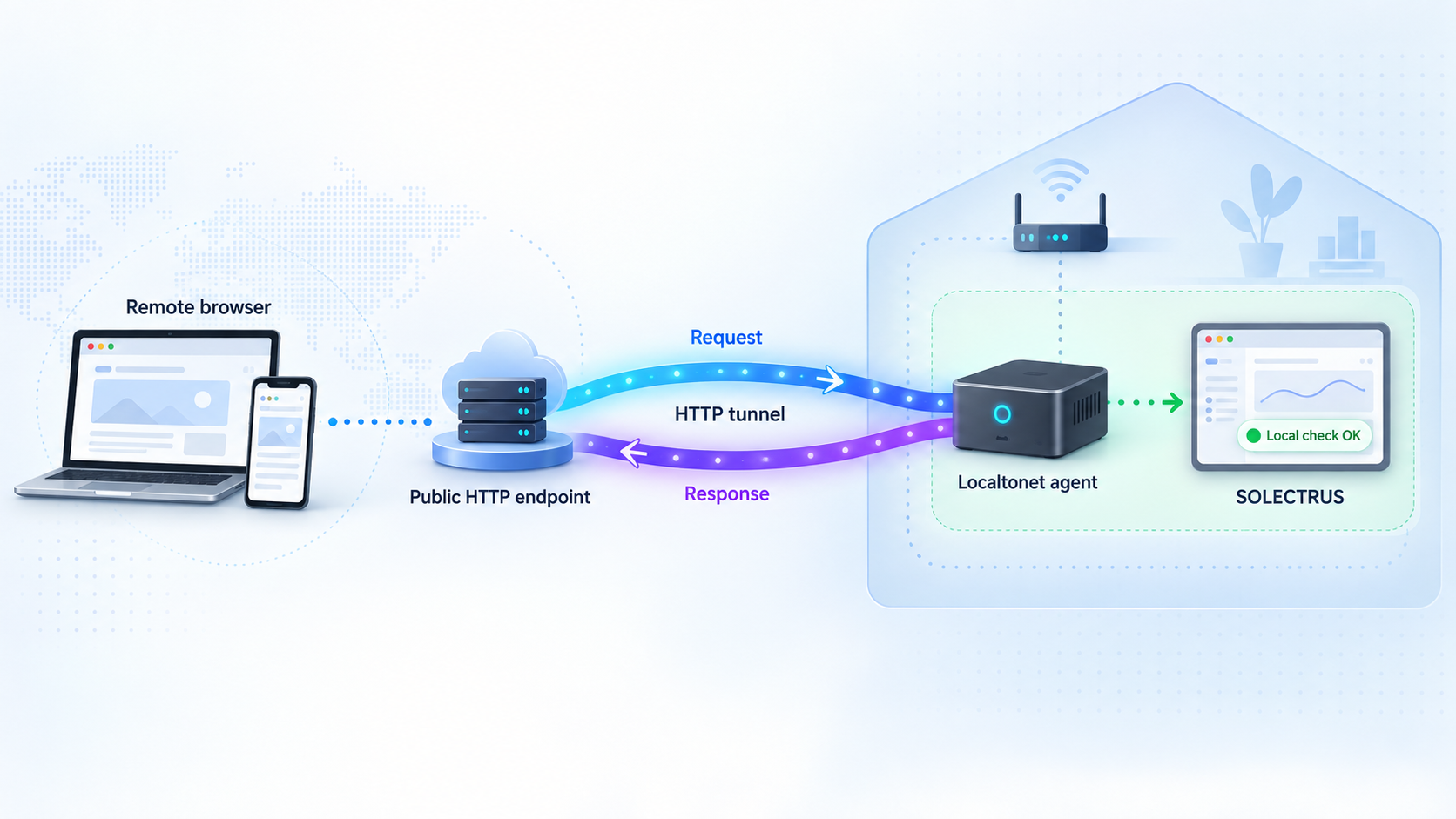
Follow the current Localtonet HTTP tunnel documentation after SOLECTRUS works from the intended client device. Our standard workflow is to install and run the client, identify the device with its token, select an available relay server, create the HTTP tunnel, start it, and test the assigned public URL.
An HTTP tunnel points to a local IP address and port reachable from the Localtonet client. HTTP and File Server tunnels may offer Random Sub Domain, Custom Sub Domain, or Custom Domain process types. All three serve content through a public HTTPS address, but availability can vary by current plan and dashboard configuration.
Install and run the Localtonet client
Install our client on the SOLECTRUS host or another device that successfully opened the verified local dashboard endpoint. The client must remain connected while remote access is needed.
Authenticate or select the device
Use the device-specific authentication token through the supported client and dashboard workflow. Keep the token private and never include it in screenshots, repositories, support posts, or shared configuration.
Select an available relay server
Choose a relay server or region currently offered in your dashboard. Obtain the value from the product rather than copying a server code from an older article.
Create the HTTP tunnel
Select the HTTP tunnel workflow, choose the required process type, and enter the verified local IP address or hostname and port. The configured target must be reachable from the selected client device.
Start the tunnel
Creating a tunnel does not make it active. Use the Start button and confirm that the selected client and tunnel are connected.
Test the assigned public URL
Open the public HTTPS address from outside the local network, such as a phone using mobile data. Confirm that the expected SOLECTRUS sign-in boundary remains in place and that required pages and assets load.
Handle HTTP and HTTPS local targets deliberately
The public Localtonet address is HTTPS, but the SOLECTRUS endpoint produced by HELIOS may have its own local scheme. If the verified local endpoint uses HTTP, configure the HTTP target using the corresponding host and port shown by your installation.
If HELIOS supplies an HTTPS local endpoint, do not silently change it to HTTP. Review the current HTTP tunnel documentation and the options displayed in your Localtonet dashboard for the supported upstream configuration. This article does not guess certificate-validation behavior or promise that a locally trusted certificate will be handled in a particular way.
A device token identifies the client that can run the tunnel and must remain secret. URL secrecy is also not a substitute for SOLECTRUS authentication. Use the application's supported access controls, grant least privilege to data integrations, and stop the tunnel when remote access is not required.
Understand the tunnel lifecycle
The public endpoint is available only while the selected Localtonet client is connected and the tunnel is running. A stopped client, offline host, failed local network path, or stopped tunnel interrupts remote access. Stopping a tunnel disables the active route without deleting its configuration. Deleting it removes the tunnel configuration.
Test more than the landing page. Sign in from the external network, inspect current readings, open a historical view, verify that static resources load, and sign out. If SOLECTRUS redirects the browser to a private hostname, stop the tunnel and consult current SOLECTRUS or HELIOS integration guidance. The supplied evidence does not define a stable external-URL variable or configuration field, so none is invented here.
Updates, backups, recovery, and support boundaries
Use HELIOS for supported application updates
HELIOS installs SOLECTRUS updates with one click according to the official project README. Before updating, review the current SOLECTRUS release information for relevant changes. Afterward, test the local endpoint, authentication, live readings, historical data, selected integration, and public URL if the tunnel is enabled.
Do not update HELIOS-managed containers by replacing images through unrelated commands unless the current project documentation explicitly identifies that as a supported recovery procedure. A container may start successfully while using incompatible configuration or while a collector remains unhealthy.
Do not infer a backup procedure from Docker alone
Historical energy data and configuration are important, but the current supplied evidence does not specify the HELIOS storage layout, volume names, database backup command, archive format, or restore procedure. It also does not establish that copying a visible directory while services are running creates a consistent backup.
Use the backup and recovery instructions supplied by the current HELIOS documentation. A complete recovery plan should identify which configuration and data must be protected, how a backup is created consistently, where it is stored, and how restoration is tested. If the current HELIOS release does not document these points, treat that as an operational limitation rather than inventing volume paths or database commands.
Keep a private deployment record
Record the host platform, local dashboard endpoint, selected integration, date of the last update, and the location of the applicable recovery instructions. Keep credentials and Localtonet device tokens in a secrets manager rather than ordinary notes.
Monitor host availability and free storage using tools appropriate for the operating system. The supplied evidence does not define a universal retention policy, storage-growth rate, minimum free-space threshold, or supported log-cleanup command.
Use support packages carefully
HELIOS can create a support package containing anonymized logs and configuration. Generate it through the supported HELIOS workflow and review the archive before sharing it. Anonymization reduces exposure, but operators should still check that unrelated notes, manually added data, network details, or credentials have not been included.
| Operation | Supported or verified approach | Avoid assuming |
|---|---|---|
| SOLECTRUS update | Review releases and use the HELIOS update mechanism | That manually replacing container images is equivalent |
| Restart | Use the action documented by the current HELIOS release | Container names or service commands |
| Backup | Follow current HELIOS backup guidance and test restoration | Volume names, paths, or live-copy consistency |
| Support request | Create the HELIOS anonymized support package and review it | That every manually added value is automatically removed |
| Remote-access maintenance | Stop or start the Localtonet tunnel as required | That creating a tunnel automatically starts it |
Troubleshooting installation, data, and remote access
HELIOS does not start or complete the installation
Return to the current HELIOS installation source linked by the SOLECTRUS repository and compare the host with its prerequisites. Check the operating system, architecture, administrative access, network connectivity, and available resources requested there. Use the status or diagnostic facilities supplied by HELIOS rather than guessing container names and issuing replacement Docker commands.
If a support package can be created, review it before sharing. Include the host platform, HELIOS version where visible, the failed stage, and whether the problem repeats. Remove credentials, Localtonet tokens, and private endpoint details.
The dashboard opens on the host but not from another LAN device
Verify the complete scheme, hostname, and port. If a hostname is used, check whether the second device can resolve it. Also check local routing and authorized firewall policy. Do not create a Localtonet tunnel until the chosen client device can reach the target directly.
The dashboard loads but energy data is missing or stale
Separate web availability from data collection. Confirm that the selected integration is configured according to its own documentation and that the host can reach the source. Check source permissions and timestamps. If only one measurement category is missing, investigate its integration mapping rather than reinstalling the whole dashboard.
Local access works but the public URL fails
Confirm that the Localtonet client is connected, the correct device is selected, and the tunnel was started. Test the local endpoint again from that same device. A changed host address, failed hostname resolution, different port, or protocol mismatch can break the tunnel target while the dashboard remains accessible from another machine.
The public URL returns an upstream error
Compare the tunnel target with the verified HELIOS endpoint. Recheck the scheme, local address, and port instead of trying arbitrary values. For a local HTTPS endpoint, review the current Localtonet HTTP tunnel options rather than assuming how its certificate will be validated.
The browser redirects to a local-only hostname
Stop the public tunnel while investigating. The application or its surrounding web configuration may be generating an absolute local URL. Follow current SOLECTRUS and HELIOS guidance for externally accessed deployments. No external-host variable is supplied by the evidence for this article, so changing an invented environment variable is not recommended.
Remote access fails after a reboot
Troubleshoot from the inside out. First test the SOLECTRUS endpoint locally. If it is unavailable, use HELIOS diagnostics. If it works, test from the Localtonet client device. Then confirm that our client is connected and the tunnel is running. This sequence identifies which layer failed without changing healthy components.
Check the energy source, integration, SOLECTRUS endpoint, client-device reachability, Localtonet connection, tunnel status, and public URL in that order. Each successful test narrows the problem to the next layer.
AGPL-3.0 license and SOLECTRUS trademark
SOLECTRUS is released under the AGPL-3.0 license. If you modify the software or make a modified version available as a service, review the license obligations that apply to your distribution and network use. The repository includes the current license text.
The SOLECTRUS name and logo are trademarks of Georg Ledermann and are not covered by the software license. The project states that forks and contributions are welcome, but a modified version distributed or operated as a service for others must use a different name. Review the project's trademark policy before publishing a branded derivative or hosted offering.
Frequently asked questions
What is SOLECTRUS?
SOLECTRUS is a self-hosted photovoltaic dashboard for monitoring solar production, consumption, battery activity, grid exchange, costs, and savings. It is open-source software based on Ruby on Rails and InfluxDB.
What does HELIOS do?
HELIOS is the installation method recommended by the SOLECTRUS maintainers. It sets up the Docker containers, keeps configuration in one place, installs updates with one click, and can create a support package containing anonymized logs and configuration.
Where should I obtain the HELIOS installer?
Open the official SOLECTRUS repository and follow the HELIOS link in its Installation section. This uses the destination maintained by the project and avoids relying on an obsolete copied installer URL or command.
Does HELIOS require Docker to be installed first?
The available evidence confirms that HELIOS sets up the Docker containers, but it does not state whether every current installation path installs Docker or expects it as a prerequisite. Follow the prerequisite section presented by the current HELIOS installation source for your platform.
Can SOLECTRUS run on a Raspberry Pi?
Yes. The project explicitly identifies a Raspberry Pi as a suitable host and also supports Linux servers. Confirm the current HELIOS architecture, operating-system, and resource requirements before choosing a particular model or image.
Is https://solectrus.localhost the production address?
No. That address is documented for the repository's macOS contributor environment started with bin/dev. Use the production endpoint created or displayed by your HELIOS installation.
Which port should I enter in Localtonet?
Enter the port from the verified production endpoint created by HELIOS. The supplied project evidence does not define a universal production port. Test the endpoint from the Localtonet client device before creating the tunnel.
What if the local SOLECTRUS endpoint uses HTTPS?
Preserve the scheme shown by HELIOS and review the current Localtonet HTTP tunnel documentation and dashboard options for the supported upstream configuration. Do not change the target to HTTP or assume certificate behavior without verifying the current product settings.
Does Localtonet require router port forwarding?
No. Our client establishes an outbound connection to a Localtonet relay server. The tunnel can provide a public URL without inbound router port forwarding, firewall changes, VPN setup, or a public IP address.
Is the tunnel a replacement for SOLECTRUS authentication?
No. The tunnel provides network reachability to the configured local service. SOLECTRUS must still enforce the appropriate sign-in and authorization behavior. Protect the device token and stop the tunnel when remote access is not required.
Can I use a custom domain?
Localtonet HTTP tunnels support Random Sub Domain, Custom Sub Domain, and Custom Domain process types. Availability can vary by current plan and dashboard configuration. Follow current Localtonet documentation for any custom-domain DNS requirements.
How should I back up a HELIOS installation?
Use the current backup and restoration instructions supplied by HELIOS. The evidence for this guide does not define storage paths, volume names, database commands, or a consistent live-copy procedure, so those details should not be guessed.
Connect your verified SOLECTRUS dashboard with Localtonet
Complete the HELIOS installation from the official SOLECTRUS entry point, record and verify the real local endpoint, confirm sign-in behavior, then create an HTTP tunnel from a device that can reach the dashboard.
Get Started Free →